 By Elois da Costa
If you want to learn how to use Google Maps to plan a trip, the key is to go beyond simple navigation and use features like saved places, custom lists, route planning, offline maps, and shared itineraries. With the right method, Google Maps can become a complete travel planning tool that helps you organize destinations, calculate travel time, discover attractions, and avoid mistakes before your trip even starts. This guide will show you step by step how experienced travelers use Google Maps to plan smarter trips.
Planning your trip this way saves time, reduces stress, and helps you see more without feeling overwhelmed.
Why Google Maps Is One of the Best Trip Planning Tools
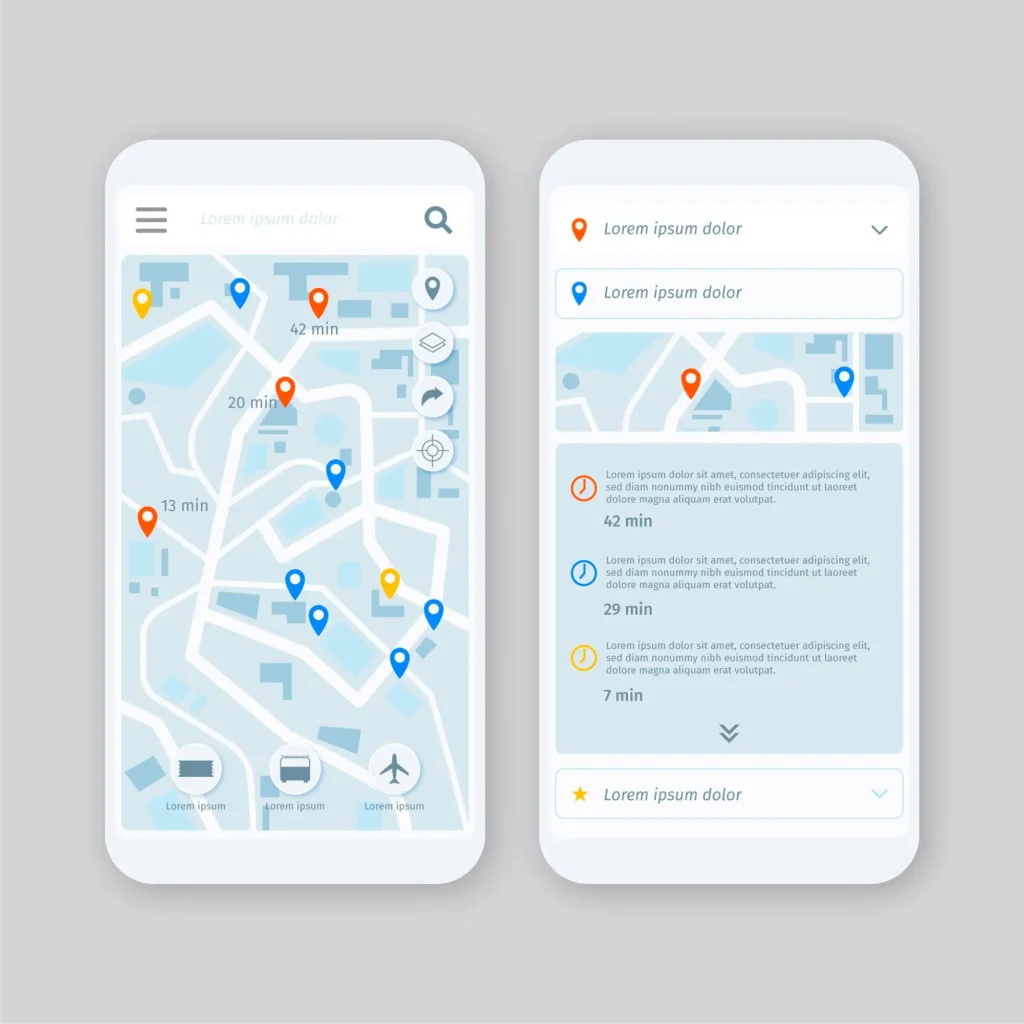
Many travelers use separate apps for hotels, flights, and attractions, but Google Maps can bring everything together in one place. You can mark locations, measure distances, check reviews, and plan daily routes without switching between apps.
Google’s own route planning system allows users to calculate travel time, optimize routes, and customize stops using advanced routing tools described in the official Google documentation on route planning features (https://developers.google.com/maps/documentation/routes_preferred/custom_routes). (Google for Developers)
Because of this, experienced travelers often use Google Maps as their main planning hub, even when booking flights on sites like Expedia or Airbnb.

Step 1: Create a List for Your Trip
The first step in learning how to use Google Maps to plan a trip is creating a custom list.
- Open Google Maps
- Click Saved
- Select New list
- Name it after your destination
For example:
Italy Trip 2026
Japan Adventure
California Road Trip
Now every place you save will stay organized in one list.
Why this matters
Keeping all locations in one list helps you see which attractions are close to each other. This makes it easier to plan daily schedules without wasting time traveling across the city.

Step 2: Save All the Places You Want to Visit
Search for places you want to visit and click Save.
You can save:
- Hotels
- Restaurants
- Museums
- Beaches
- Airports
- Train stations
- Cafes
- National parks
When planning, check reviews and ratings inside Google Maps. Many travelers use reviews to decide where to go, similar to how travel platforms recommend checking trusted ratings before booking accommodations or activities.
Saving everything in advance makes your itinerary visual, not just a list of ideas.
Step 3: Use Colors and Icons to Organize Your Trip
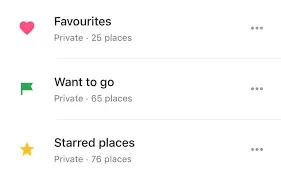
Google Maps allows different icons for saved places. Use them to organize your trip.
Example system:
- Star for hotel
- Heart for restaurants
- Flag for attractions
- Green marker for nature spots
This makes your map easy to read.
When professionals plan trips, they always categorize locations so they can quickly see what to do each day.
Step 4: Plan Each Day by Distance, Not by List
One of the biggest mistakes beginners make is planning trips in the wrong order.
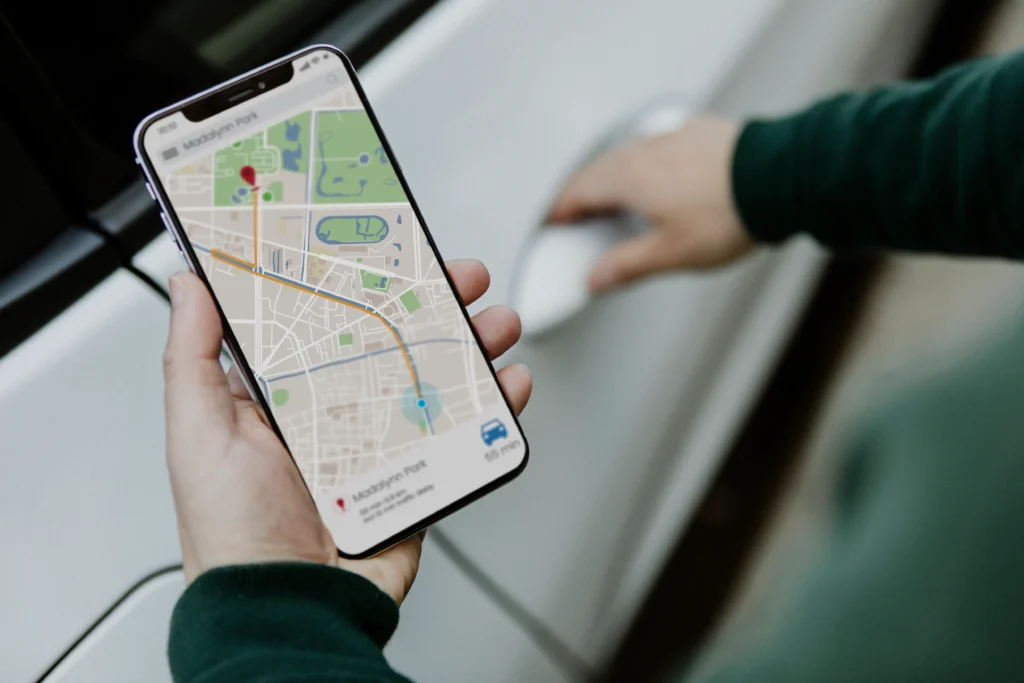
Instead of choosing places randomly, zoom into the map and look for groups of locations close to each other.
This helps you:
- Walk less
- Spend less money on transport
- Avoid exhaustion
- Visit more places in one day
Route planning tools work best when stops are grouped logically, which is why mapping your itinerary visually is more effective than writing it in notes.
Step 5: Use the Directions Tool to Build Daily Routes
Now that you saved places, start building routes.
- Click Directions
- Add starting point
- Add destination
- Click Add stop
You can add multiple stops to create a daily plan.
Example:
Hotel → Museum → Restaurant → Park → Hotel
Google Maps will calculate time, distance, and best route automatically.
Route optimization tools like these are commonly used in travel planning because they help avoid unnecessary travel time and improve efficiency, similar to route customization features explained in official Google Maps routing guides (https://developers.google.com/maps/documentation/routes_preferred/custom_routes). (Google for Developers)

Step 6: Download Offline Maps Before You Travel
If you want to master how to use Google Maps to plan a trip, you must learn offline maps.
Steps:
- Search for your destination
- Click Download
- Select area
- Save offline map
This lets you use navigation without internet.
Offline maps are very useful when traveling abroad, on road trips, or in places with poor signal.
Travel authorities often recommend preparing digital tools in advance to avoid delays during travel, just like official travel tips suggest planning ahead and preparing before leaving home (https://www.tsa.gov/travel/travel-tips/2024). (https://www.tsa.gov/news/press/releases/2022/03/09/tsa-prepared-spring-break-travel-and-offers-10-travel-tips-smooth)
Step 7: Check Travel Time at Different Hours
Traffic changes everything.
Before finalizing your plan, check travel time at different hours.
Google Maps allows you to select:
- Leave now
- Depart at
- Arrive by
This helps you avoid:
- Rush hour
- Long lines
- Closed attractions
Planning travel times in advance is one of the habits experienced travelers use to avoid stress.
Step 8: Share Your Map With Friends or Family
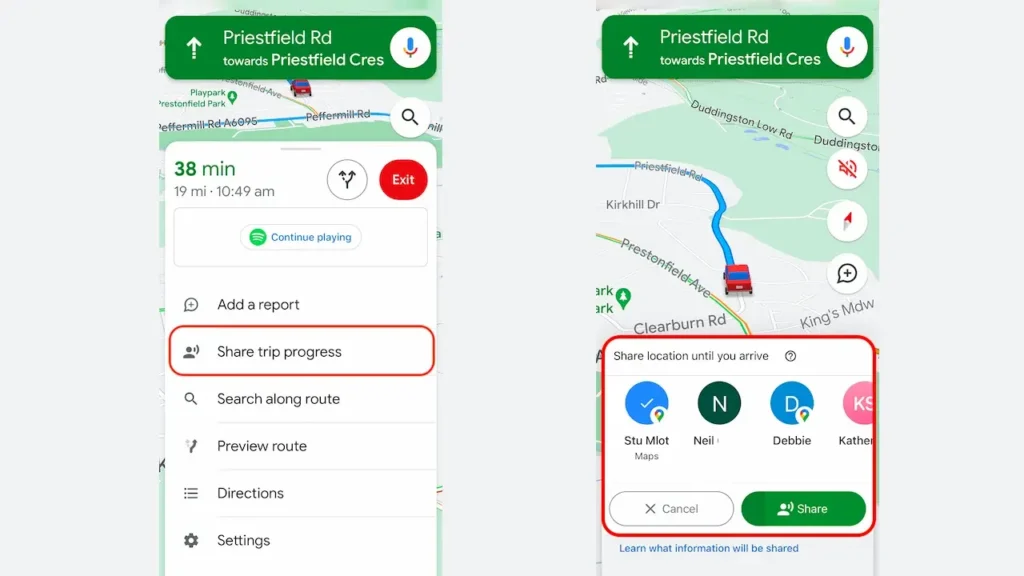
Google Maps lets you share lists and routes.
Click Share → Send link
This is useful when traveling with:
- Family
- Friends
- Couples
- Group tours
Everyone can see the same plan, which avoids confusion.
Group planning tools are commonly used in travel apps because they help keep itineraries organized and prevent mistakes, especially on complex trips.
Step 9: Use Google Maps to Find Hidden Places
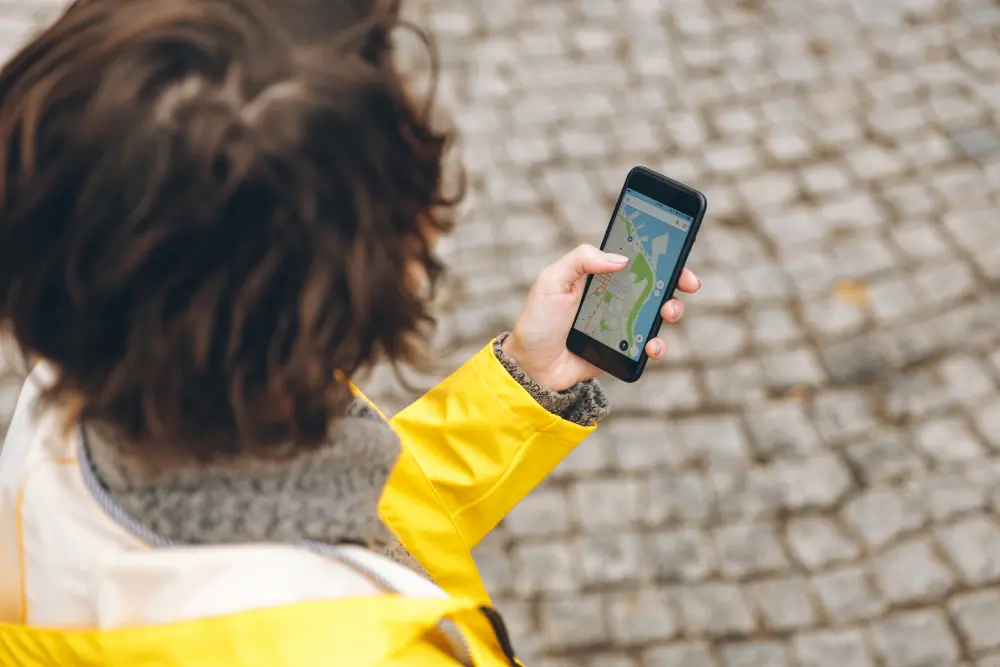
Google Maps is not only for directions.
You can also discover:
- Local restaurants
- Hidden beaches
- Small cafes
- Scenic viewpoints
- Walking routes
Search things like:
best food near me
top attractions in Rome
things to do in Tokyo
Reading reviews helps you avoid tourist traps.
Experienced travelers always check real reviews instead of only following social media.

Step 10: Combine Google Maps With Booking Sites
Professional trip planners do not use only one tool.
They combine Google Maps with booking sites like:
- Airline websites
- Hotel platforms
- Travel agencies
- Official tourism pages
For example, after finding a hotel location on the map, you can compare prices on booking sites and then save the exact location in your list.
Using multiple sources helps confirm details and avoid mistakes, which is why travel experts recommend checking official information when planning trips.
Step 11: Use Google Maps for Road Trips
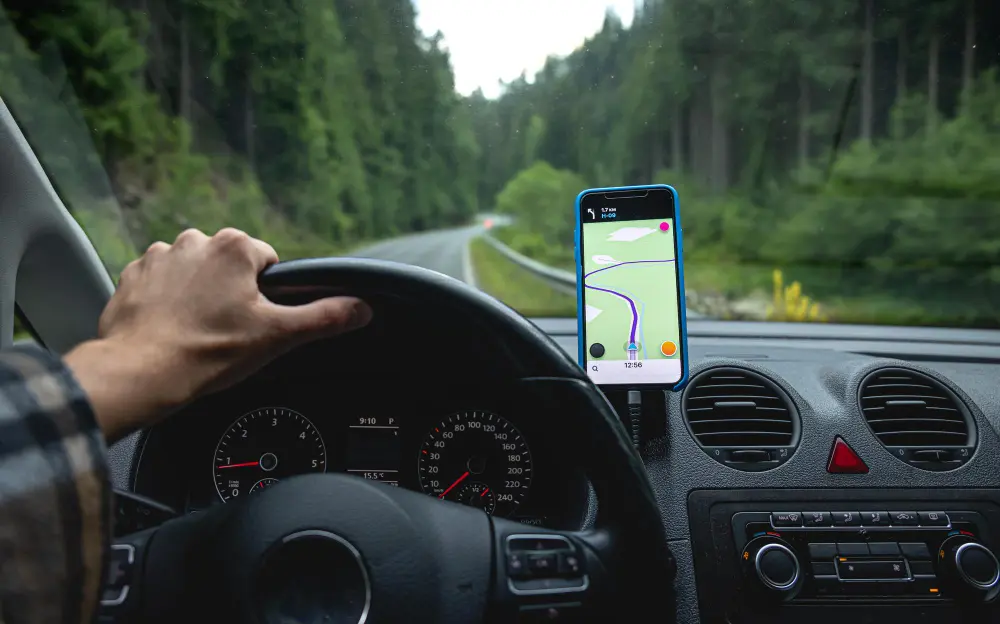
Google Maps is perfect for road trips.
You can:
- Add many stops
- Change routes
- Check gas stations
- Find restaurants
- Avoid toll roads
- Avoid highways
Road trip planning works best when you see the entire route on the map instead of writing it on paper.
Many travel planners use mapping tools because visual routes make long trips easier to manage.
Step 12: Double Check Everything Before the Trip
Before traveling, review your map.
Check:
- Hotel location
- Airport distance
- Transport options
- Opening hours
- Travel time
- Saved places
Preparing in advance is one of the most important travel habits. Official travel guidelines often remind travelers to plan ahead, pack correctly, and review details before leaving to avoid delays or problems during the trip (https://www.tsa.gov/news/press/releases/2022/03/09/tsa-prepared-spring-break-travel-and-offers-10-travel-tips-smooth).
When everything is saved in Google Maps, you can check your entire trip in minutes.
Final Thoughts
Learning how to use Google Maps to plan a trip can completely change the way you travel. Instead of feeling lost or unprepared, you can see your entire itinerary on one map, organize your days efficiently, and avoid common mistakes.
Professional travelers use Google Maps because it allows them to:
- Save places
- Build routes
- Check travel time
- Download maps
- Share plans
- Discover new locations
If you use these features before your trip, you will travel with more confidence, less stress, and better organization.
And once you get used to planning this way, you may never go back to writing travel plans on paper again.