 By Elois da Costa
Planning a road trip can feel overwhelming, but knowing how to plan a road trip on Google Maps makes the whole process faster, smarter, and a lot more enjoyable. Google Maps lets you build a complete route from scratch, add multiple stops, check real-time traffic, and even download maps to use without internet. Whether you’re crossing a state or exploring a country, this guide walks you through every step so your trip goes as smoothly as possible.
Start With Your Route: The Basics of Google Maps Trip Planning
The first thing you need is a clear starting point and a destination. Open Google Maps on your phone or computer, tap the directions icon, and enter your starting location and final destination. Google will automatically suggest the fastest route, but you’re not locked into that choice. You can tap “Routes” to see alternatives that might save time, avoid highways, or take a more scenic path.
One thing many travelers don’t realize is that Google Maps lets you switch between driving, walking, cycling, and transit modes. For a road trip, stick with driving and pay attention to the estimated travel time, which updates based on current traffic conditions. According to Google’s official Maps Help Center, real-time traffic data is factored into route suggestions automatically, so what you see is always the most current estimate available.
How to Add Multiple Stops to Your Route
A road trip is rarely just point A to point B. You want to stop for gas, grab lunch, visit a landmark, or overnight at a hotel. Google Maps makes it easy to add stops without rebuilding your route from scratch.
Here’s how to do it on mobile: once your route is set, tap the three dots (more options) in the top right corner and select “Add stop.” You can add up to nine stops per route. Drag and reorder them however you like by holding the handle next to each stop.
On desktop, the process is even easier. After setting your starting point and destination, click the plus (+) icon below the list of stops to insert additional locations. You can reorder them by dragging each one up or down. This is perfect for planning a multi-day itinerary where the order of stops actually matters for distance and timing.
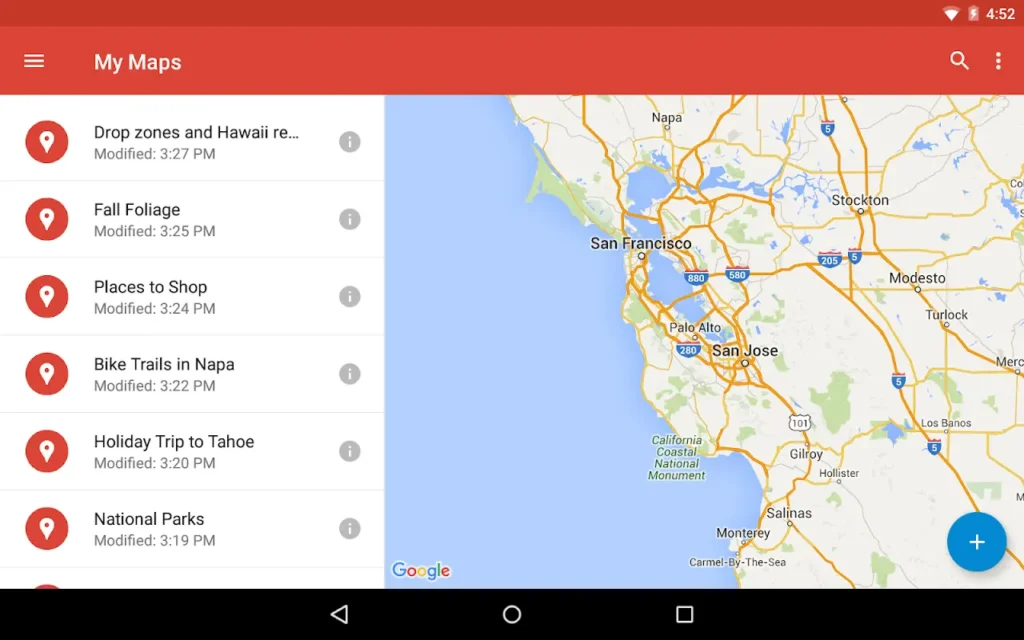
A smart strategy is to use Google My Maps, a separate tool that lets you build and save custom maps with layers, icons, and notes. It’s ideal for longer trips where you want to organize stops by category, like food, lodging, and attractions.
Finding Stops Along the Way
One of the most useful features for road trippers is the “Search along route” option. Once your route is active, tap the search bar and Google will show you relevant results (gas stations, restaurants, hotels) that are close to your path without significantly adding to your drive time.
You can filter by category: coffee shops, EV charging stations, rest areas, and more. The U.S. Department of Transportation notes that planning fuel and rest stops in advance is one of the most effective ways to avoid fatigue on long drives, especially on routes with limited services.
When you find a stop you like, tap it and choose “Add stop” to insert it directly into your route. Google will recalculate the time automatically.
Using Google Maps Offline: Download Maps Before You Go
Cell service is not guaranteed on road trips, especially through rural areas, mountains, or remote highways. That’s why downloading offline maps is not optional: it’s essential.
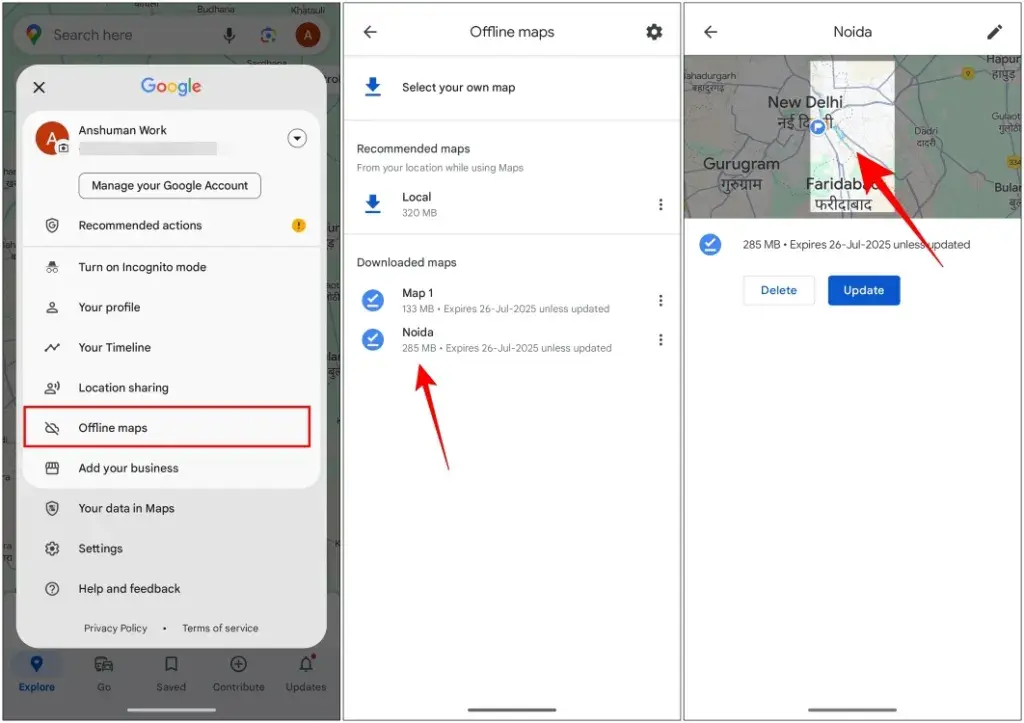
To download a map on Android or iPhone, open Google Maps, tap your profile picture, and go to “Offline maps.” Then tap “Select your own map,” zoom in to the area you want to cover, and hit “Download.” You can download entire regions, which is ideal for long road trips that span multiple states or countries.
Offline maps give you turn-by-turn navigation, business listings, and basic search even without a data connection. Keep in mind that real-time traffic and some live features won’t work offline, but the core navigation is fully functional. Google’s offline maps documentation recommends downloading maps over Wi-Fi before departure to avoid large data charges.
Pro tip: download maps a day before you leave, not the morning of. This gives you time to re-download if something goes wrong.
Sharing Your Trip and Live Location
Road trips are more fun (and safer) when someone knows where you are. Google Maps has a built-in feature to share your real-time location with friends or family. Tap your profile photo, go to “Location sharing,” and choose who you want to share with and for how long.
You can also share your entire route before departure. Just tap the three-dot menu on your active route and select “Share directions.” The recipient gets a link that opens the full route in their own Google Maps app, which is great for group trips where multiple cars are following the same path.
If you’re traveling internationally, TripAdvisor’s travel planning resources suggest coordinating route sharing with your travel group early, especially when crossing borders where different apps or GPS systems may be preferred locally.
Checking Traffic, Tolls, and Alternative Routes
Before you hit the road, spend five minutes reviewing your route for potential issues. Google Maps shows toll roads with a small icon and lets you avoid them entirely through the route options menu (tap the three dots, then “Route options”). This is a lifesaver if you’re trying to manage a road trip budget.
Traffic is color-coded directly on the map: green means clear, yellow means moderate, and red means delays. Orange falls somewhere in between. If your departure time is flexible, Google Maps will actually suggest the best time to leave to avoid peak traffic, based on historical data for that specific route.
For trips that cross multiple states, it’s worth checking the Federal Highway Administration’s road conditions portal for information about construction, closures, or seasonal restrictions that Google Maps may not fully reflect in real time.

Saving and Organizing Stops With Lists
Google Maps lets you save any location to a personal list, which functions as a bookmark system for your trip. Tap on any place, scroll down, and hit “Save.” From there, you can add it to an existing list (like “Road Trip 2026”) or create a new one.
This is especially useful during the planning phase. You can research possible stops ahead of time, save them all to a list, and then decide which ones make the final route cut. Your saved lists sync across devices, so anything you plan on your laptop will be ready on your phone when you leave.
Pair this with Roadtrippers, a trip-planning platform that integrates with mapping tools and helps you discover offbeat stops like roadside attractions, scenic overlooks, and local diners that wouldn’t normally surface in a standard search.
Final Tips Before You Hit the Road
Before departure, run through this quick checklist to make sure your Google Maps setup is ready:
Your offline maps should be downloaded for every region you’re driving through. Your route should include all major stops with drive times reviewed. Traffic settings and toll preferences should be adjusted. Your phone should be charged and mounted safely in the car. Location sharing should be active with at least one trusted contact.
AAA’s road trip planning guide also recommends printing a basic version of your route as a backup, especially for stretches with limited connectivity. It sounds old-fashioned, but it works.
Knowing how to plan a road trip on Google Maps from start to finish puts you in control of every mile. The app does the heavy lifting when it comes to routing and real-time adjustments, but the fun parts (the detours, the discoveries, the spontaneous stops) are still entirely up to you. Start building your route, download those offline maps, and get ready to drive.